Explain 3.0s–7.0s Open with the result then explain one step
Example 7.0s–12.0s Show a real example before you ask anyone to follow
Visual
Your next reel needs a plan
Open with the result then explain one step
Show a real example before you ask anyone to follow
Narration
Your next reel needs a plan
Open with the result then explain one step
Show a real example before you ask anyone to follow
Captions
Music
Drag a visual boundary to push later slots. Drag one caption to move only that word.
Reference pacing preview
Faceless Video Template: Reuse a Reel's Pacing
A faceless video template maps your script onto a reference reel's cuts. It previews four tracks in the browser: visual, narration, captions, and music. It samples the first 30 seconds of an MP4, WebM, or MOV up to 80 MB. It does not export an MP4 or copy the original footage.
Creators who already know the pacing they want can check whether a new line fits those slots.
What the built-in example shows
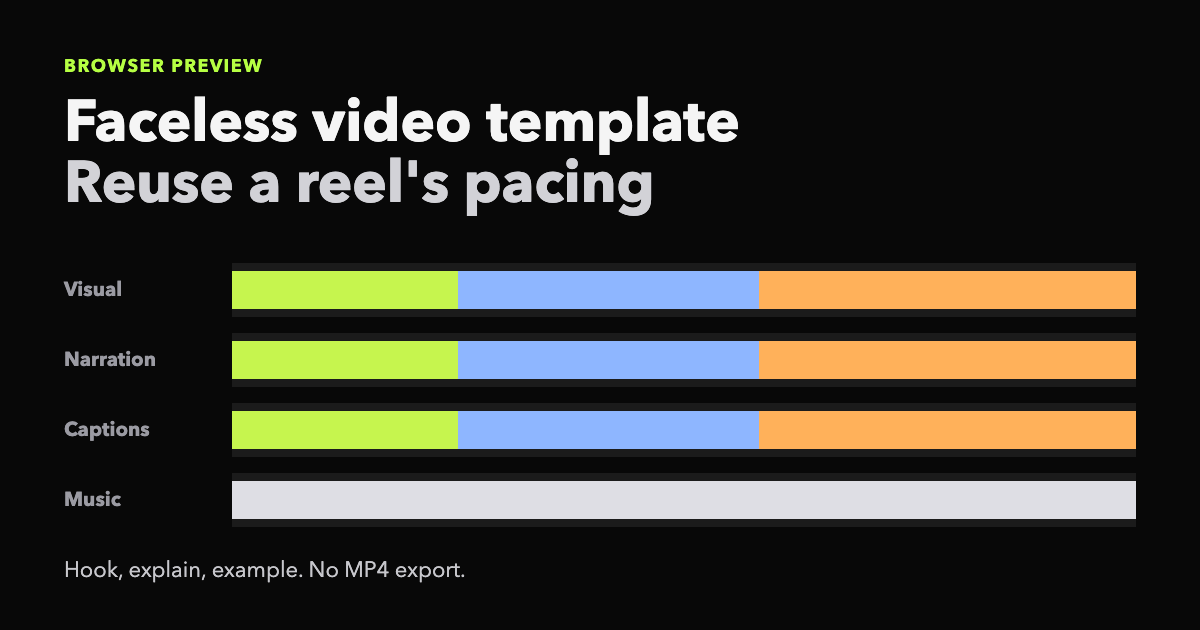
The faceless video template opens on a 12-second example with three slots, so you can see the timing before you upload anything. The rows are the built-in timing, not a clip taken from another creator.
Built-in example for the default English script. The words are ours. The timing is the default preview.
Slot
Time
Example words
Hook
0.0–3.0 seconds
Your next reel needs a plan
Explain
3.0–7.0 seconds
Open with the result then explain one step
Example
7.0–12.0 seconds
Show a real example before you ask anyone to follow
What a faceless video template keeps
Keep the timing that makes a short video readable. Replace the words and the pictures. The four controls below are the whole preview: cuts, script fitting, caption placement, and the music bed.
Measured cuts, not a copied frame
Upload a reference and the page marks where the picture changes. A faceless video template uses those cuts as empty slots. Similar frames fall back to three equal parts instead of pretending a scene list was detected.
Your script, spread by slot length
Paste a line or a short narration. Longer slots receive more words, and the original spoken line is not imported. Use the result as a reel pacing template when you need caption timing, not a new render.
Captions that can move alone
Visual and narration share a boundary. A caption word can slide inside its slot without pushing the pictures or the music. Those voiceover slots sit on the reference reel, so short-form timing can change before a render.
A music bed you can trim
The music bar only changes where the bed starts and ends. This preview does not split voice from music inside the upload, so treat the bar as a timing mark, not a finished mix.
How to use a faceless video template
Use the workbench in order. Read a reference, fit your script, adjust the tracks, then play the frame. Most pacing checks take under 5 minutes. A faceless video template is finished as a pacing check, not as a published file.
Step 1
Read a reference you can use
Upload an MP4, WebM, or MOV you have rights to use, or start with the 12-second example. The browser marks picture changes in the first 30 seconds and keeps files at or below 80 MB.
Step 2
Paste your own script
Fit the words across the measured slots by length. The original spoken line stays out of the preview, so the result is your script on the reference pacing.
Step 3
Adjust the four tracks
Drag a visual boundary to push every later slot. The faceless video template keeps every later slot attached to that boundary. Drag one caption when only that word should move. Trim the music bed from either edge.
Step 4
Preview the 9:16 stack
Press play to check the picture, narration, and active caption together. This preview does not export an MP4. Continue to the AI Faceless Video Generator when you need a rendered file.
Which starting point should you use?
Use the faceless video template when the question is timing. Start in the generator when the question is a rendered video. The faceless video template does not replace script writing or niche research.
Choose the example timing, your own reference, or the full generator.
Start
You bring
You get
Example timing
No file
Three slots across 12.0 seconds
Your reference
MP4, WebM, or MOV under 80 MB
Cuts from the first 30 seconds of picture changes
Full video
An idea or script in the generator
A reviewable 9:16 project. Rendering uses credits.
Who a faceless video template is for
Check a new hook against an old cut
A short-form editor already has a 15-second reel they made and a new opening line. They upload their own file and fit the new line. The faceless video template shows whether the first slot still leaves enough time for the hook.
Reuse pacing across a series
A faceless channel owner wants the same three-beat rhythm on the next topic. The faceless video template keeps the slot lengths while the script changes, so the old footage and old words stay unused.
Time captions before a render
A writer wants to know how the words sit before spending credits on voice and scenes. The faceless video template is the check before any credits are spent. They continue in the AI Faceless Video Generator only if the pacing holds.
Limits of this preview
This faceless video template only measures pacing you can see in the browser.
A faceless video template does not download a TikTok, Reel, or Short from a URL.
A faceless video template does not read burned-in words or transcribe speech.
A faceless video template does not separate voice from music inside the upload.
A faceless video template does not export, post, or copy someone else's footage.
A faceless video template turns a flat image, or a clip without hard cuts, into three equal slots.
Only upload a reference video you have rights to use.
One reference file produces one pacing template.
Words are split by slot length, not by names or punctuation.
What this preview does not charge
The pacing preview runs in your browser and does not ask you to sign in. Reviewed October 10, 2026. A faceless video template on this page stops at playback.
The separate AI Faceless Video Generator can render a 9:16 file. Rendering uses credits. New accounts receive 100 credits, enough for about 1-3 short videos, including one 15-second Fast export. This page does not auto-post to TikTok, Reels, or Shorts.
Faceless video template questions
Does a faceless video template copy the original video?
No. A faceless video template keeps the measured cuts and caption rhythm, then places your script in those slots. It does not copy footage, faces, music, or the original words. You still need rights to any file you upload.
Is this the same as a CapCut faceless template?
No. A CapCut template is an effect package inside that editor. This page measures timing from a file you provide and lets you drag four tracks in the browser. It does not install effects, filters, or a face-hiding preset.
Do I need an AI agent to build the timeline?
No. Picture changes are measured locally, and your script is fitted by slot length. The file is not sent to an AI model. Speech transcription and burned-in caption reading are not part of this preview.
Can I export the adjusted tracks?
Not from this preview. This faceless video template leaves the adjusted tracks on the page so you can judge the pacing before you spend credits. A finished 9:16 MP4 comes from the separate AI Faceless Video Generator, and rendering there uses credits.
Which reference videos can I upload?
Upload a video you have rights to use, up to 80 MB. Only the first 30 seconds are sampled. A clip with little visual change falls back to three equal slots instead of inventing cuts.
What to do after the pacing check
If the slots feel wrong, rewrite the line in the Faceless Reels Script Generator. If you still need a niche, use the Faceless YouTube Niche Finder. When the timing holds, take the same idea into a full project. Open the faceless video template again when the next script needs those same slot lengths.
Ready for pictures, voice, and a file you can upload yourself? Leave this faceless video template and open the generator.